
Designing scalable mobile applications starts with choosing the right architecture. Whether you’re building a simple prototype or a production-grade app, the structure of your code defines how easy it will be to maintain and extend your project in the future.
Among the most well-known architectural patterns is the MVC architecture — Model, View, Controller. While Flutter allows flexibility in how you structure your project, MVC remains one of the easiest patterns to understand and implement, especially for new developers.
In this blog, we will explore:
-
What MVC architecture is
-
Why MVC matters
-
How MVC fits into Flutter
-
A complete real-time Flutter example (To-Do App)
-
Full project structure and code
Let’s begin!
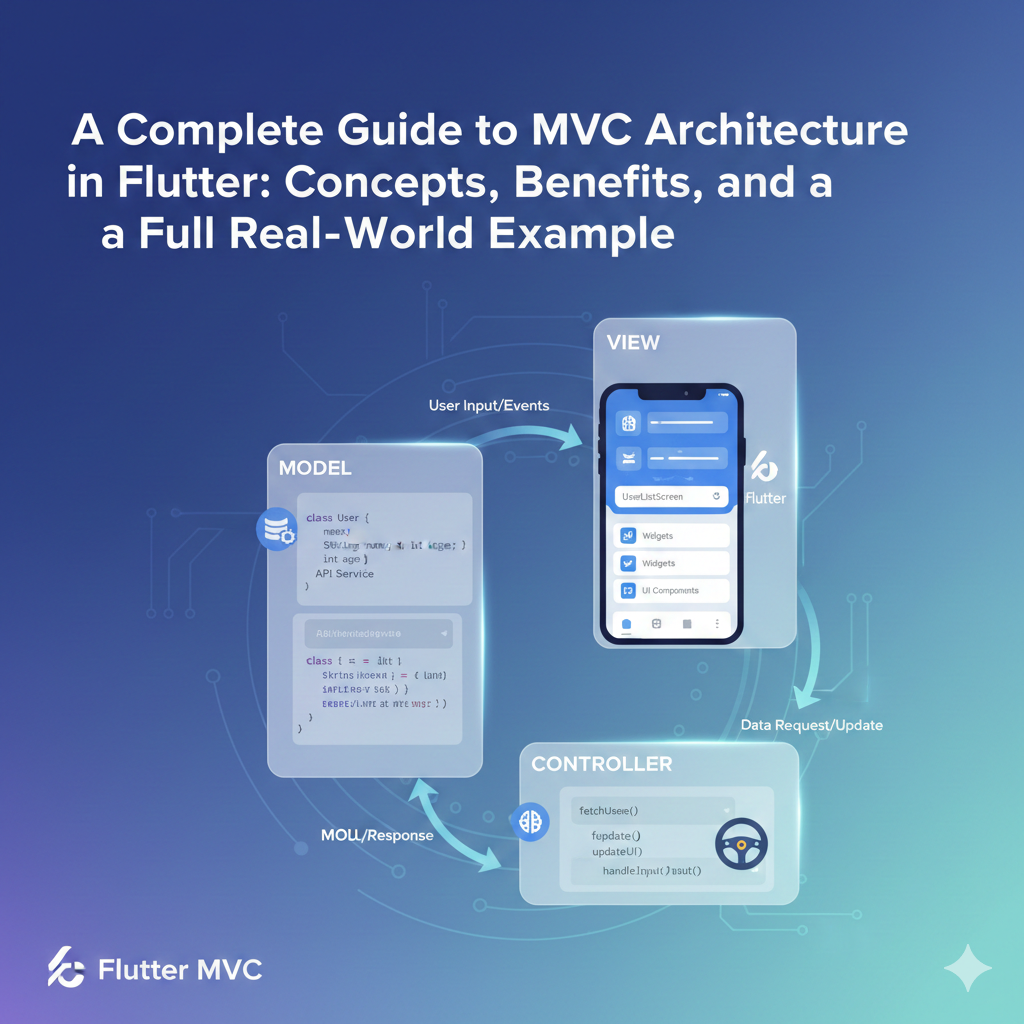
1. What is MVC Architecture?
MVC stands for:
-
Model → Data and business rules
-
View → User interface (UI)
-
Controller → Manages logic, updates model and view
In simple terms:
- Model handles data
- Controller handles logic
- View handles UI
This separation makes your code cleaner, testable, and easier to scale.
2. Why MVC Architecture Matters
Here’s why developers choose MVC:
✔ Clean Separation of Concerns
UI code stays away from logic. Logic stays away from data operations.
✔ Simple and Easy to Implement
Perfect for beginners and small to medium apps.
✔ Faster Development
Teams can work on UI and logic separately.
✔ Better Maintainability
Fixing or adding features becomes easier.
3. How MVC Fits in Flutter
Flutter does not enforce any architecture.
It gives you a blank canvas.
But MVC fits naturally because:
-
Widgets → behave as Views
-
Dart classes → act as Models
-
Logic classes (e.g., ChangeNotifier/Controller) → act as Controllers
User clicks a button → View
Controller receives action → updates Model
Model changes → View rebuilds automatically
This flow is perfect for Flutter apps.
4. Real-World Scenario: To-Do App Using MVC
To demonstrate MVC in action, we will build a Simple To-Do App that allows users to:
-
Add tasks
-
Mark tasks as complete
-
Delete tasks
This is a real, practical example you can extend into a full project.
5. Project Structure (MVC)
Your lib/ folder should follow this structure:
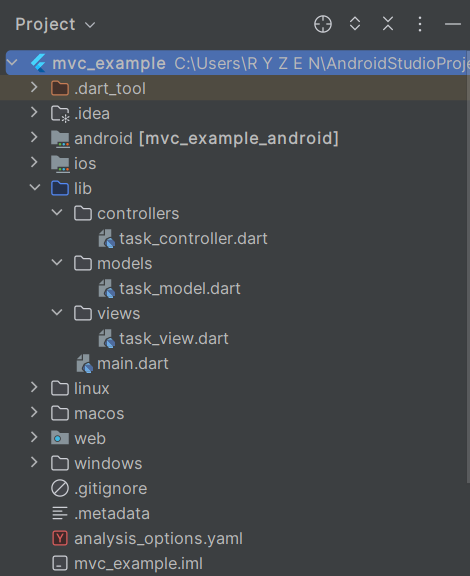
This makes your project clean, readable, and professional.
6. Step-by-Step Implementation
Below is the complete working code for each file.
🟦 Model — task_model.dart
The model represents a Task object.
class Task {
  final String id;
  final String title;
  bool isCompleted;

  Task({
    required this.id,
    required this.title,
    this.isCompleted = false,
  });
}
🟧 Controller — task_controller.dart
The controller manages adding, updating, and deleting tasks.
import 'package:flutter/material.dart';
import '../models/task_model.dart';

class TaskController extends ChangeNotifier {
  final List<Task> _tasks = [];

  List<Task> get tasks => _tasks;

  void addTask(String title) {
    final newTask = Task(
      id: DateTime.now().microsecondsSinceEpoch.toString(),
      title: title,
    );
    _tasks.add(newTask);
    notifyListeners();
  }

  void toggleTask(String id) {
    final index = _tasks.indexWhere((task) => task.id == id);
    if (index != -1) {
      _tasks[index].isCompleted = !_tasks[index].isCompleted;
      notifyListeners();
    }
  }

  void deleteTask(String id) {
    _tasks.removeWhere((task) => task.id == id);
    notifyListeners();
  }
}
🟩 View — task_view.dart
This handles the UI only.
import 'package:flutter/material.dart';
import 'package:provider/provider.dart';
import '../controllers/task_controller.dart';

class TaskView extends StatelessWidget {
  const TaskView({super.key});

  @override
  Widget build(BuildContext context) {
    final controller = Provider.of<TaskController>(context);

    return Scaffold(
      appBar: AppBar(
        title: const Text("Flutter MVC To-Do App"),
        centerTitle: true,
      ),
      body: Column(
        children: [
          Expanded(
            child: controller.tasks.isEmpty
                ? const Center(child: Text("No tasks added yet"))
                : ListView.builder(
              itemCount: controller.tasks.length,
              itemBuilder: (context, index) {
                final task = controller.tasks[index];
                return ListTile(
                  leading: Checkbox(
                    value: task.isCompleted,
                    onChanged: (_) => controller.toggleTask(task.id),
                  ),
                  title: Text(
                    task.title,
                    style: TextStyle(
                      decoration: task.isCompleted
                          ? TextDecoration.lineThrough
                          : TextDecoration.none,
                    ),
                  ),
                  trailing: IconButton(
                    icon: const Icon(Icons.delete, color: Colors.red),
                    onPressed: () => controller.deleteTask(task.id),
                  ),
                );
              },
            ),
          ),

          Padding(
            padding: const EdgeInsets.all(12.0),
            child: _buildAddTaskField(context, controller),
          )
        ],
      ),
    );
  }

  Widget _buildAddTaskField(BuildContext context, TaskController controller) {
    final TextEditingController textController = TextEditingController();

    return Row(
      children: [
        Expanded(
          child: TextField(
            controller: textController,
            decoration: const InputDecoration(
              labelText: "Enter task",
              border: OutlineInputBorder(),
            ),
          ),
        ),
        const SizedBox(width: 10),
        ElevatedButton(
          onPressed: () {
            if (textController.text.isNotEmpty) {
              controller.addTask(textController.text);
              textController.clear();
            }
          },
          child: const Text("Add"),
        )
      ],
    );
  }
}
🟦 Main File — main.dart
Connect controller to the view with Provider.
import 'package:flutter/material.dart';
import 'package:provider/provider.dart';
import 'controllers/task_controller.dart';
import 'views/task_view.dart';

void main() {
  runApp(const MVCApp());
}

class MVCApp extends StatelessWidget {
  const MVCApp({super.key});

  @override
  Widget build(BuildContext context) {
    return ChangeNotifierProvider(
      create: (_) => TaskController(),
      child: MaterialApp(
        debugShowCheckedModeBanner: false,
        title: "MVC Architecture Flutter App",
        theme: ThemeData(primarySwatch: Colors.blue),
        home: const TaskView(),
      ),
    );
  }
}
7. How This Example Demonstrates MVC Perfectly
Model Layer
Stores the structure of Task data.
View Layer
Displays UI, listens for user interactions (tap, input).
Controller Layer
Performs business logic:
-
Adds task
-
Updates task
-
Deletes task
The View never directly modifies the Model.
The Model never contains logic.
The Controller keeps everything running smoothly.
This strict separation represents MVC perfectly.
8. Conclusion
MVC is one of the simplest yet powerful architectures you can implement in Flutter. It helps you organize your code into clear sections and improves readability, maintainability, and scalability.
In this guide, you learned:
-
What MVC means
-
Why MVC is useful
-
How to structure Flutter apps with MVC
-
A complete real-time To-Do app example
Whether you’re a beginner or a working professional, MVC is the perfect starting point for writing clean and structured Flutter applications.
Let’s keep building amazing apps together! Subscribe to our blog and get new Flutter guides delivered straight to your inbox.