Introduction
Flutter is one of the most popular open-source frameworks developed by Google for building cross-platform mobile applications using a single codebase. With Flutter, developers can create high-performance Android and iOS applications efficiently.
If you are a beginner and want to start Flutter development on Windows, the best and easiest way is by using Android Studio. This blog provides a complete step-by-step guide to install Flutter through Android Studio on Windows, covering everything from downloading software to running your first Flutter app.
Do you know basic concepts of OOP? Visit the link.
System Requirements
Before starting the installation, ensure your system meets the following requirements:
-
Operating System: Windows 10 or later (64-bit)
-
RAM: Minimum 8 GB (recommended)
-
Storage: At least 10 GB free space
-
Processor: Intel i5 / AMD Ryzen 5 or higher
-
Internet Connection: Required for downloads
Step 1: Download Flutter SDK
-
Open your web browser
-
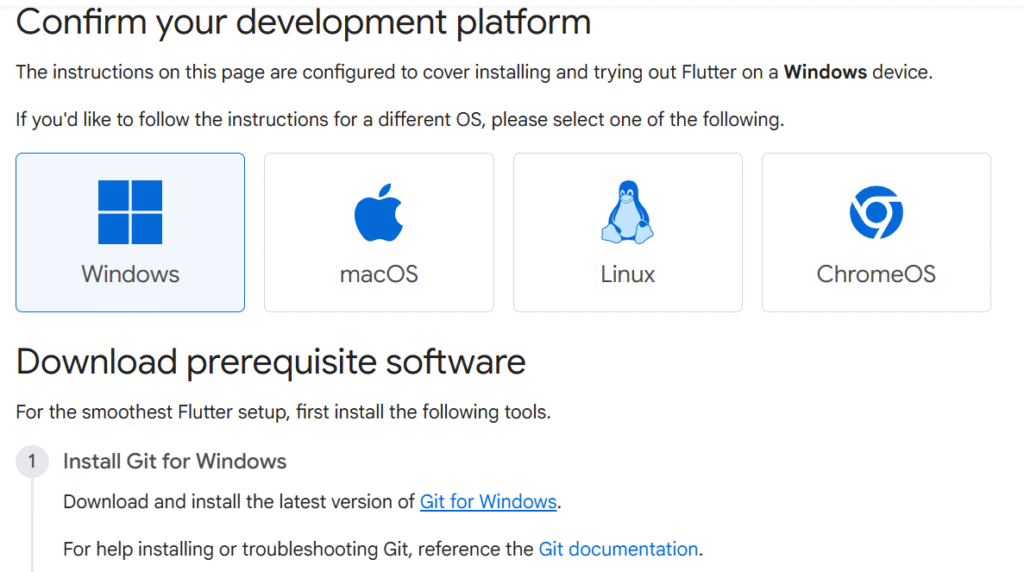
Visit the official Flutter website:
https://flutter.dev -
Navigate to Get Started → Windows
-
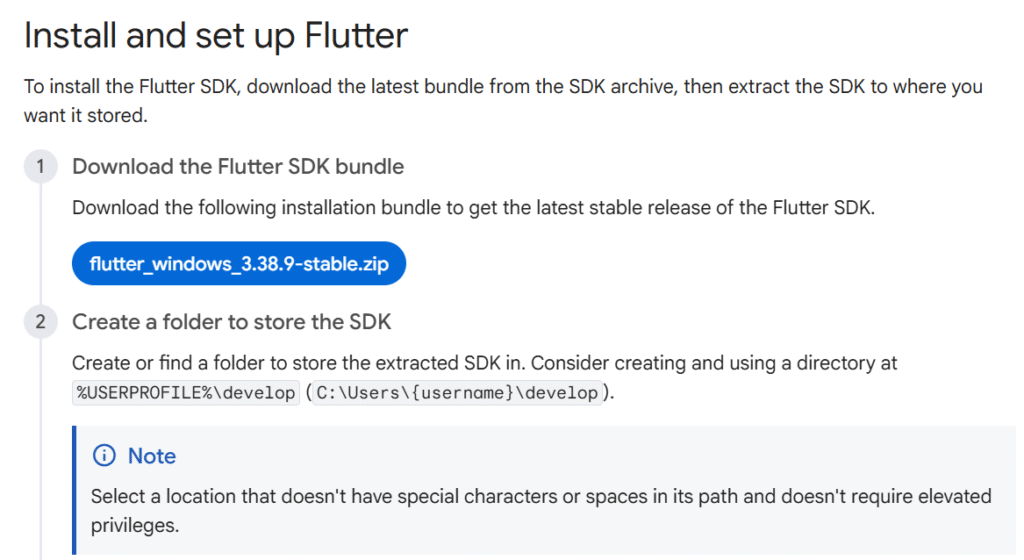
Download the Flutter SDK ZIP file
-
Extract the ZIP file to the following directory: C:\src\flutter
⚠️ Avoid installing Flutter inside Program Files or Documents to prevent permission issues.
Then click on Install Flutter manually to download the Flutter SDK.
Step 2: Download and Install Android Studio
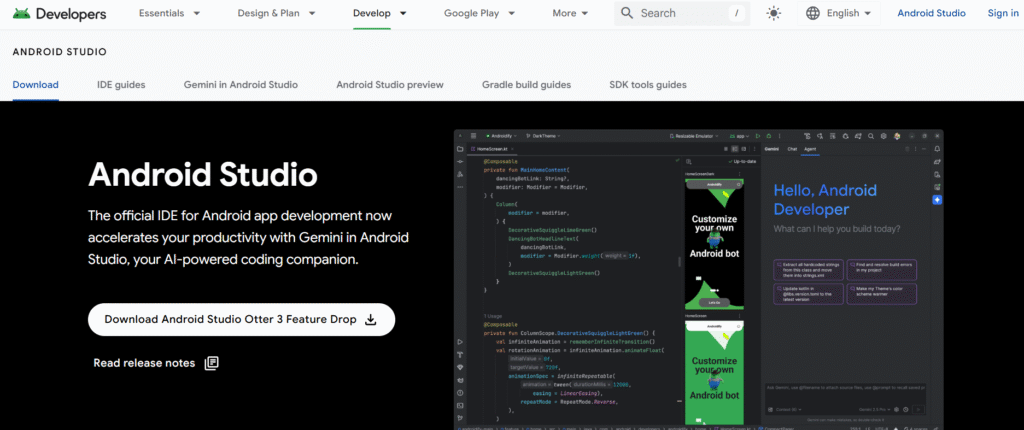
Android Studio is the official IDE for Android and Flutter development.
-
Download the Android Studio installer
-
Run the installer
-
Select the following components:
-
Android Studio
-
Android Virtual Device
-
-
Complete the installation and launch Android Studio
Step 3: Install Flutter and Dart Plugins
To enable Flutter development in Android Studio, plugins are required.
-
Open Android Studio
-
Click More Actions → Plugins
-
Go to the Marketplace
-
Search for Flutter
-
Click Install
-
When prompted, also install the Dart plugin
-
Restart Android Studio
Step 4: Configure Flutter SDK Path
-
Open Android Studio
-
Navigate to: File → Settings → Languages & Frameworks → Flutter
- Set Flutter SDK Path to: C:\src\flutter
- Click Apply → OK
Step 5: Install Android SDK and Required Tools
-
In Android Studio, go to: More Actions → SDK Manager
-
Under SDK Platforms, select the latest Android version
-
Under SDK Tools, ensure the following are installed:
-
Android SDK Platform-Tools
-
Android SDK Build-Tools
-
Android Emulator
-
Android SDK Command-line Tools
-
-
Click Apply and wait for installation
Step 6: Set Up Android Emulator
-
Open Device Manager in Android Studio
-
Click Create Device
-
Choose a device (e.g., Pixel 4 or Pixel 6)
-
Download and select an Android system image
-
Finish setup and start the emulator
Step 7: Add Flutter to Environment Variables
-
Open Edit system environment variables
-
Click Environment Variables
-
Under System Variables, edit Path
-
Add: C:\src\flutter\bin
- Save and close all windows
Step 8: Verify Installation Using flutter doctor
-
Open Command Prompt
-
Run: flutter doctor
-
Review the output and follow any suggested fixes
-
Accept Android licenses if prompted: flutter doctor –android-licenses
Step 9: Create and Run Your First Flutter App
-
Open Android Studio
-
Click New Flutter Project
-
Select Flutter Application
-
Enter project name and details
-
Start Android Emulator
-
Click Run ▶️
🎉 Your first Flutter app will run successfully!
Are you facing some issues related to Flutter Android Studio Setup, visit ME.
Common Installation Issues and Solutions
Flutter command not recognized
-
Ensure Flutter bin path is added correctly to environment variables
Android licenses not accepted
-
Run
flutter doctor --android-licenses
Emulator not starting
-
Enable virtualization from BIOS
-
Ensure Hyper-V or HAXM is properly installed
Why Choose Flutter?
-
Single codebase for Android & iOS
-
Fast development with Hot Reload
-
High performance
-
Strong community support
-
Backed by Google
Conclusion
Installing Flutter using Android Studio on Windows is straightforward if you follow the correct steps. This guide walked you through downloading Flutter SDK, setting up Android Studio, configuring tools, and running your first Flutter application.
You are now ready to start building modern, cross-platform mobile applications using Flutter.
FAQs
Q1: Is Flutter free to use?
Yes, Flutter is open-source and completely free.
Q2: Can Flutter be used for web and desktop apps?
Yes, Flutter supports Android, iOS, Web, Windows, macOS, and Linux.
Q3: Is Android Studio mandatory for Flutter?
No, but it is highly recommended for beginners.