How to Install Visual Studio Code for C/C++ on Windows
Setting up a C/C++ development environment on Windows can be confusing, especially for beginners. Many students struggle with installing compilers, configuring environment variables, and running programs correctly.
In this complete guide, you will learn how to install Visual Studio Code for C/C++ on Windows, including the C/C++ extension, Code Runner, and the MinGW GCC compiler, step by step.
What is Visual Studio Code?
Visual Studio Code (VS Code) is a free, lightweight, and open-source code editor developed by Microsoft. It supports multiple programming languages such as C, C++, Java, Python, JavaScript, and Dart through extensions.
VS Code is popular because of:
-
Fast performance
-
Built-in terminal
-
Debugging support
-
Large extension ecosystem
System Requirements for VS Code on Windows
Before installing Visual Studio Code, make sure your system meets the following requirements:
-
Operating System: Windows 10 or Windows 11
-
Processor: 1.6 GHz or faster
-
RAM: Minimum 1 GB (4 GB recommended)
-
Disk Space: At least 200 MB
-
Internet connection for downloads
How to Download and Install Visual Studio Code on Windows
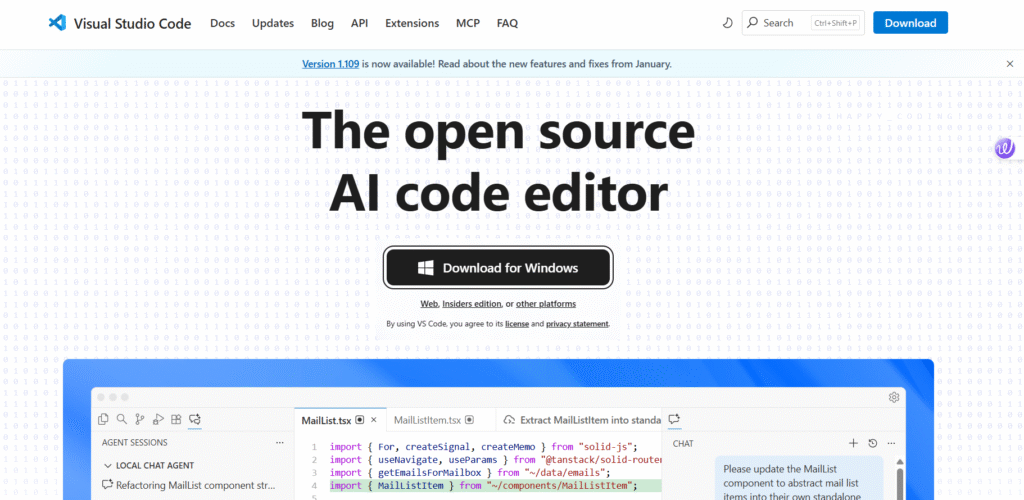
Follow these steps to install VS Code:
-
Open a web browser and visit the official website:
https://code.visualstudio.com -
Click Download for Windows.
-
Once the installer is downloaded, double-click the
.exefile. -
Accept the license agreement and click Next.
-
Select the default installation path (recommended).
-
Check the following options:
-
✅ Add to PATH
-
✅ Create a Desktop Icon
-
✅ Register Code as an editor for supported file types
-
-
Click Install, then Finish.
Visual Studio Code is now installed on your system.
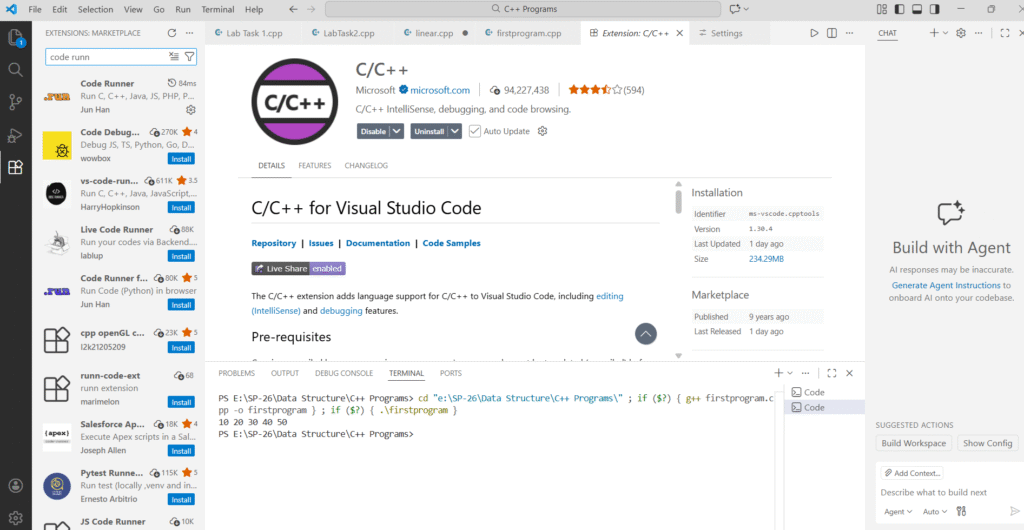
Installing the C/C++ Extension in VS Code
The C/C++ extension provides IntelliSense, debugging, and code navigation.
Steps:
-
Open Visual Studio Code.
-
Click on the Extensions icon from the left sidebar.
-
Search for C/C++.
-
Install C/C++ by Microsoft.
Installing the Code Runner Extension
The Code Runner extension allows you to run C/C++ programs with a single click.
Steps:
-
Open the Extensions tab.
-
Search for Code Runner.
-
Install Code Runner by Jun Han.
Benefits:
-
Run code using Right-Click → Run Code
-
Shortcut key: Ctrl + Alt + N
How to Install MinGW GCC Compiler on Windows
To compile C and C++ programs, a compiler is required. On Windows, MinGW (Minimalist GNU for Windows) is commonly used.
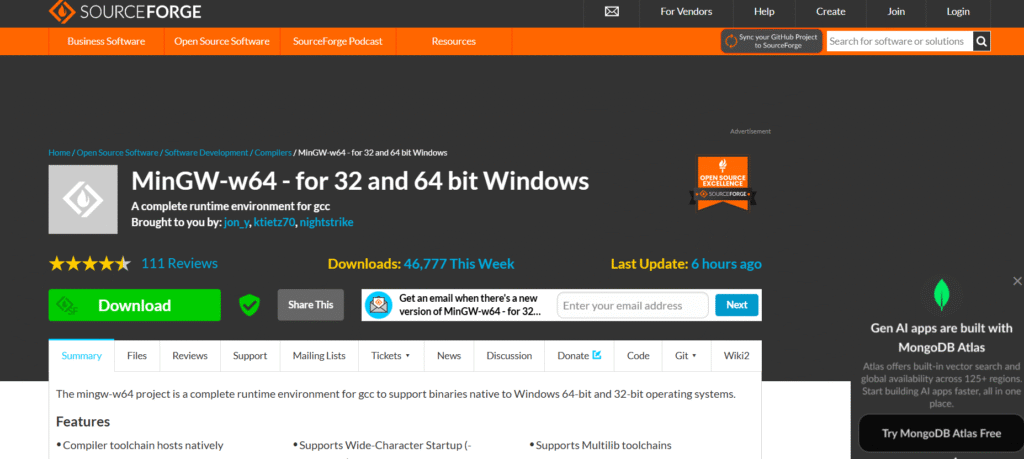
Steps to Install MinGW:
-
Click Download.
-
Run the installer.
-
Select the following options:
-
Version: Latest
-
Architecture: x86_64
-
Threads: posix
-
Exception: seh
-
- Choose an installation directory, for example: C:\mingw64
- Click Install and wait for completion.
Setting Up MinGW Environment Variables (PATH)
To allow Windows and VS Code to recognize the GCC compiler, you must add MinGW to the PATH.
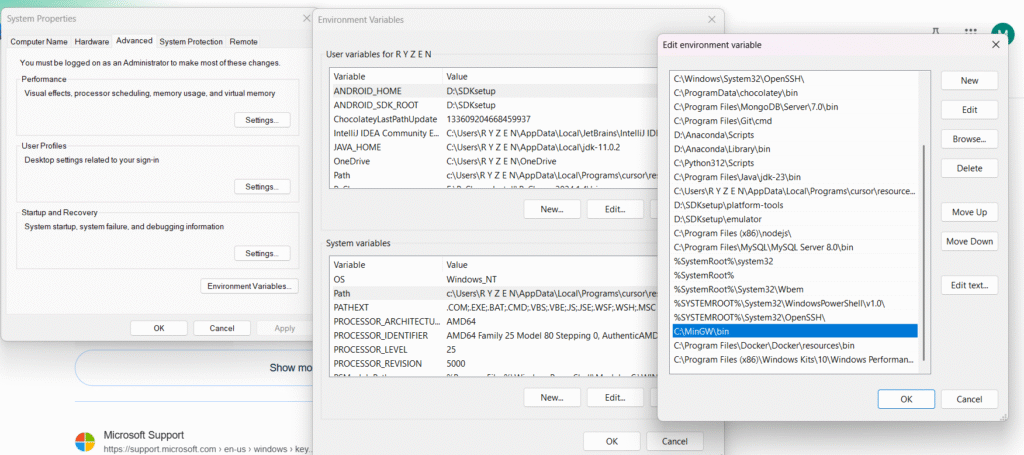
Steps:
-
Press Windows + S and search Environment Variables.
-
Click Edit the system environment variables.
-
Click Environment Variables.
-
Under System Variables, select Path → Click Edit.
-
Click New and add: C:\mingw64\bin
-
Click OK on all windows.
-
Restart your computer.
Verify GCC Compiler Installation
After restarting:
-
Open Command Prompt.
-
Type: gcc –version or g++ –version
- If version information appears, MinGW is installed correctly.
Run Your First C++ Program in Visual Studio Code
Step 1: Create a C++ File
-
Open VS Code
-
Create a new file named
main.cpp
Step 2: Write Sample Code
#include <iostream>
using namespace std;
int main() {
   cout << "Hello, C++ in VS Code!" << endl;
   return 0;
}
Step 3: Run the Program
-
Right-click inside the editor → Run Code
-
OR press Ctrl + Alt + N
You will see the output in the terminal.
COMMON ISSUES AFTER VSC INSTALLATION:
❌ gcc not recognized as an internal or external command
✔ Fix: Ensure MinGW bin folder is correctly added to PATH and restart the system.
❌ Code Runner not working
✔ Fix: Make sure the C/C++ extension and MinGW are properly installed.
❌ Permission denied or file not found
✔ Fix: Save the file before running and avoid spaces in folder names.
Conclusion
By following this step-by-step guide, you have successfully:
-
Installed Visual Studio Code on Windows
-
Configured C/C++ and Code Runner extensions
-
Installed and set up MinGW GCC compiler
-
Run your first C++ program in VS Code
Visual Studio Code is now ready for efficient C/C++ development.
Frequently Asked Questions (FAQs)
Is Visual Studio Code free for C++?
Yes, VS Code is completely free and open-source.
Which compiler is best for C++ on Windows?
MinGW GCC is one of the most reliable and widely used compilers.
Can I use VS Code for other languages?
Yes, VS Code supports Java, Python, Dart, JavaScript, and many more.