Flutter State Management: setState vs Provider (With a Real-World Shopping Cart Example)
Quick Answer
What is state management in Flutter? State management is how a Flutter app stores, updates, and shares data (like a shopping cart, login status, or theme) so the user interface always reflects the latest values.
What is the difference between setState and Provider? setState rebuilds a single widget when its own local data changes. Provider allows multiple widgets across the app to share and react to the same data through a ChangeNotifier.
When should you use each? Use setState for small, temporary UI state scoped to one widget (a toggle, text field, or tab index). Use Provider for shared or app-level state (cart, user session, settings, or API data).
In this guide, you will build a real shopping cart app that uses both approaches together effectively.
Lesson 14: State Management in Flutter 2: Provider vs BLoC vs GetX (Complete Guide)
1. What Is State in Flutter?
In Flutter, state is any data that can change while the app is running and affects what the user sees on screen. Everything visible is a widget, and widgets are rebuilt whenever state changes.
Flutter developers generally categorize state into two types:
- Ephemeral (local) state: Data that belongs strictly to a single widget, such as whether a heart icon is selected, an animation is playing, or which tab is active.
- App (shared) state: Data needed by multiple screens or components across the application, such as user authentication tokens, cart items, theme preferences, or fetched catalog items.
Choosing the right tool for each type is fundamental to architecting performant, maintainable Flutter apps.
2. What Is setState and How Does It Work?
setState() is the built-in method provided by Flutter’s State<T> class for StatefulWidget. When invoked, it schedules a build phase for that specific widget subtree, causing build() to execute again with updated values.
Basic setState Example
class CounterWidget extends StatefulWidget {
  const CounterWidget({super.key});

  @override
  State<CounterWidget> createState() => _CounterWidgetState();
}

class _CounterWidgetState extends State<CounterWidget> {
  int _count = 0;

  void _increment() {
    setState(() {
      _count++;
    });
  }

  @override
  Widget build(BuildContext context) {
    return ElevatedButton(
      onPressed: _increment,
      child: Text('Clicked $_count times'),
    );
  }
}
Why it works well here: The counter state is isolated to this single widget. No other component in the tree requires access to _count.
Advantages of setState
- Requires zero third-party dependencies.
- Very low barrier to entry.
- Ideal for self-contained, isolated UI behavior.
Limitations of setState
- State is scoped strictly to the host widget and cannot easily be shared upward or sideways.
- Passing data across layers (“prop drilling”) creates high coupling and boilerplate.
- Mixes business/domain logic directly into presentation code.
- Rebuilds the entire widget subtree instead of surgical, targeted updates.
3. When setState Is Not Enough
Consider a standard online store. The catalog screen contains an “Add to Cart” button, the top navigation bar holds a badge with total item counts, and a separate checkout screen calculates the grand total.
Three separate components across different screen routes require synchronous access to the exact same dataset. Managing this with setState requires lifting the state to the nearest common ancestor and passing variables and callbacks downward through every single widget constructor. This pattern is error-prone, fragile, and difficult to test.
This is where decoupled state management with Provider comes in.
4. What Is Provider in Flutter?
Provider is an officially recommended, community-standard abstraction layer built over Flutter’s native InheritedWidget. It provides a structured dependency injection and reactive listening framework without constructor drilling.
The architecture relies on three primary building blocks:
- ChangeNotifier: A foundation class that encapsulates business data and calls
notifyListeners()when mutations occur. - ChangeNotifierProvider: A widget that instantiates, provides, and disposes of a
ChangeNotifierthroughout its subtree. - Consumers / Readers: Widgets that read and observe state using
context.watch<T>(),context.read<T>(),Consumer<T>, orSelector<T, R>.
notifyListeners() called → Only subscribed listeners rebuild.5. Real-Time Use Case: An E-Commerce Shopping Cart
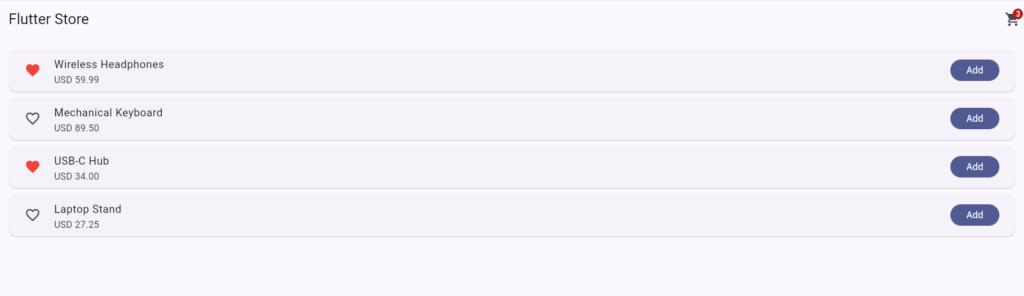
We will implement a small application demonstrating both paradigms working together:
- Product List Screen: Displays an inventory catalog.
- Favorite (Heart) Toggle: Isolated to each product card — implemented via
setState. - Add to Cart & Cart Badge: Shared across the top bar and inventory — implemented via
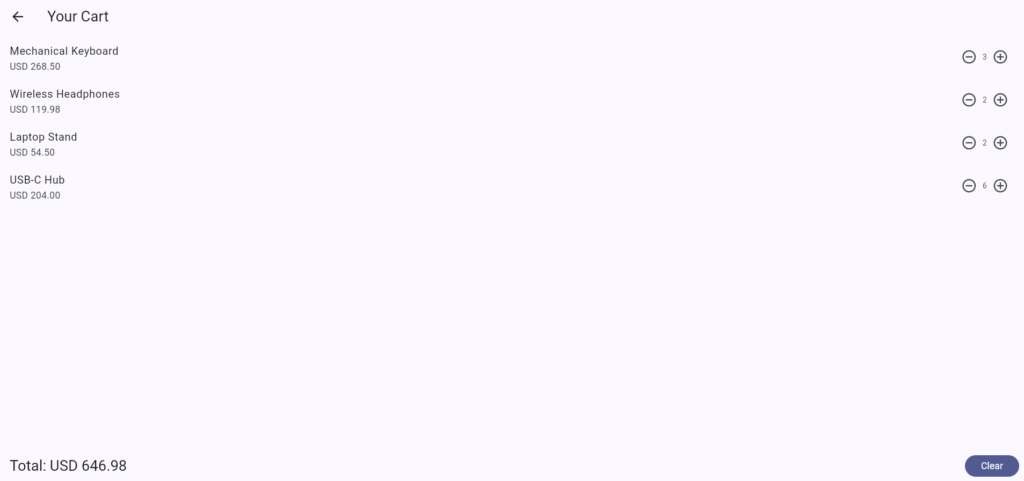
Provider. - Cart Screen: Quantity adjustments and live subtotal calculations — implemented via
Provider.
Project Setup
Add provider to your pubspec.yaml file:
dependencies:
  flutter:
    sdk: flutter
  provider: ^6.1.2
Suggested Project Structure
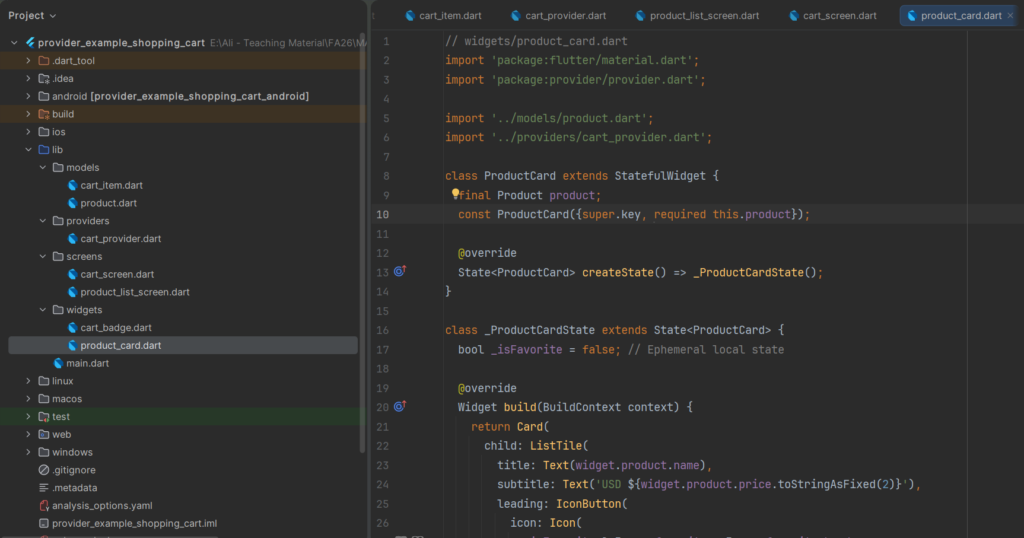
6. Step-by-Step Implementation
Step 1: Create the Models
// models/product.dart
class Product {
  final String id;
  final String name;
  final double price;

  const Product({
    required this.id,
    required this.name,
    required this.price,
  });
}
// models/cart_item.dart
import 'product.dart';

class CartItem {
  final Product product;
  int quantity;

  CartItem({required this.product, this.quantity = 1});

  double get subtotal => product.price * quantity;
}
Step 2: Create the CartProvider (ChangeNotifier)
// providers/cart_provider.dart
import 'dart:collection';
import 'package:flutter/foundation.dart';

import '../models/cart_item.dart';
import '../models/product.dart';


class CartProvider extends ChangeNotifier {
  final Map<String, CartItem> _items = {};

  UnmodifiableListView<CartItem> get items =>
      UnmodifiableListView(_items.values);

  int get totalCount =>
      _items.values.fold(0, (sum, item) => sum + item.quantity);

  double get totalPrice =>
      _items.values.fold(0.0, (sum, item) => sum + item.subtotal);

  bool get isEmpty => _items.isEmpty;

  void add(Product product) {
    if (_items.containsKey(product.id)) {
      _items[product.id]!.quantity++;
    } else {
      _items[product.id] = CartItem(product: product);
    }
    notifyListeners();
  }

  void decrease(String productId) {
    final item = _items[productId];
    if (item == null) return;
    if (item.quantity > 1) {
      item.quantity--;
    } else {
      _items.remove(productId);
    }
    notifyListeners();
  }

  void remove(String productId) {
    _items.remove(productId);
    notifyListeners();
  }

  void clear() {
    _items.clear();
    notifyListeners();
  }
}
Step 3: Register Provider at the Root Level
// main.dart
import 'package:flutter/material.dart';
import 'package:provider/provider.dart';
import 'providers/cart_provider.dart';
import 'screens/product_list_screen.dart';

void main() {
  runApp(
    ChangeNotifierProvider(
      create: (_) => CartProvider(),
      child: const MyApp(),
    ),
  );
}

class MyApp extends StatelessWidget {
  const MyApp({super.key});

  @override
  Widget build(BuildContext context) {
    return MaterialApp(
      debugShowCheckedModeBanner: false,
      title: 'Flutter Store',
      theme: ThemeData(useMaterial3: true, colorSchemeSeed: Colors.indigo),
      home: const ProductListScreen(),
    );
  }
}
Step 4: Product Card (setState for Local State)
// widgets/product_card.dart
import 'package:flutter/material.dart';
import 'package:provider/provider.dart';

import '../models/product.dart';
import '../providers/cart_provider.dart';

class ProductCard extends StatefulWidget {
  final Product product;
  const ProductCard({super.key, required this.product});

  @override
  State<ProductCard> createState() => _ProductCardState();
}

class _ProductCardState extends State<ProductCard> {
  bool _isFavorite = false; // Ephemeral local state

  @override
  Widget build(BuildContext context) {
    return Card(
      child: ListTile(
        title: Text(widget.product.name),
        subtitle: Text('USD ${widget.product.price.toStringAsFixed(2)}'),
        leading: IconButton(
          icon: Icon(
            _isFavorite ? Icons.favorite : Icons.favorite_border,
            color: _isFavorite ? Colors.red : null,
          ),
          onPressed: () {
            setState(() => _isFavorite = !_isFavorite);
          },
        ),
        trailing: FilledButton(
          onPressed: () {
            // Read without subscribing: trigger action only
            context.read<CartProvider>().add(widget.product);
            ScaffoldMessenger.of(context).showSnackBar(
              SnackBar(content: Text('${widget.product.name} added to cart')),
            );
          },
          child: const Text('Add'),
        ),
      ),
    );
  }
}
Step 5: Cart Badge with Selective Rebuilding
// widgets/cart_badge.dart
import 'package:flutter/material.dart';
import 'package:provider/provider.dart';
import '../providers/cart_provider.dart';
import '../screens/cart_screen.dart';

class CartBadge extends StatelessWidget {
  const CartBadge({super.key});

  @override
  Widget build(BuildContext context) {
    return Selector<CartProvider, int>(
      selector: (_, cart) => cart.totalCount,
      builder: (context, count, child) {
        return IconButton(
          icon: Badge(
            isLabelVisible: count > 0,
            label: Text('$count'),
            child: const Icon(Icons.shopping_cart),
          ),
          onPressed: () {
            Navigator.of(context).push(
              MaterialPageRoute(builder: (_) => const CartScreen()),
            );
          },
        );
      },
    );
  }
}
Step 6: Product Catalog Screen
// screens/product_list_screen.dart
import 'package:flutter/material.dart';

import '../models/product.dart';
import '../widgets/product_card.dart';
import '../widgets/cart_badge.dart';

class ProductListScreen extends StatelessWidget {
  const ProductListScreen({super.key});

  static const _products = [
    Product(id: 'p1', name: 'Wireless Headphones', price: 59.99),
    Product(id: 'p2', name: 'Mechanical Keyboard', price: 89.50),
    Product(id: 'p3', name: 'USB-C Hub', price: 34.00),
    Product(id: 'p4', name: 'Laptop Stand', price: 27.25),
  ];

  @override
  Widget build(BuildContext context) {
    return Scaffold(
      appBar: AppBar(
        title: const Text('Flutter Store'),
        actions: const [CartBadge()],
      ),
      body: ListView(
        padding: const EdgeInsets.all(12),
        children: [
          for (final p in _products) ProductCard(product: p),
        ],
      ),
    );
  }
}
Step 7: Cart Detail Screen with Dynamic Totals
// screens/cart_screen.dart
import 'package:flutter/material.dart';
import 'package:provider/provider.dart';
import '../providers/cart_provider.dart';

class CartScreen extends StatelessWidget {
  const CartScreen({super.key});

  @override
  Widget build(BuildContext context) {
    final cart = context.watch<CartProvider>();

    return Scaffold(
      appBar: AppBar(title: const Text('Your Cart')),
      body: cart.isEmpty
          ? const Center(child: Text('Your cart is empty'))
          : Column(
        children: [
          Expanded(
            child: ListView.builder(
              itemCount: cart.items.length,
              itemBuilder: (context, index) {
                final item = cart.items[index];
                return ListTile(
                  title: Text(item.product.name),
                  subtitle: Text(
                    'USD ${item.subtotal.toStringAsFixed(2)}',
                  ),
                  trailing: Row(
                    mainAxisSize: MainAxisSize.min,
                    children: [
                      IconButton(
                        icon: const Icon(Icons.remove_circle_outline),
                        onPressed: () => context
                            .read<CartProvider>()
                            .decrease(item.product.id),
                      ),
                      Text('${item.quantity}'),
                      IconButton(
                        icon: const Icon(Icons.add_circle_outline),
                        onPressed: () => context
                            .read<CartProvider>()
                            .add(item.product),
                      ),
                    ],
                  ),
                );
              },
            ),
          ),
          Padding(
            padding: const EdgeInsets.all(16),
            child: Row(
              mainAxisAlignment: MainAxisAlignment.spaceBetween,
              children: [
                Text(
                  'Total: USD ${cart.totalPrice.toStringAsFixed(2)}',
                  style: Theme.of(context).textTheme.titleLarge,
                ),
                FilledButton(
                  onPressed: () => context.read<CartProvider>().clear(),
                  child: const Text('Clear'),
                ),
              ],
            ),
          ),
        ],
      ),
    );
  }
}
7. Watch vs. Read vs. Selector: Which One Should You Use?
| Method | Rebuilds on Change? | Primary Use Case |
|---|---|---|
context.watch<T>() |
Yes | Subscribing to and displaying values directly in build(). |
context.read<T>() |
No | Invoking methods inside callback handlers (e.g., onPressed). |
Selector<T, R> |
Only when selected slice changes | High-performance rendering (e.g., watching only item counts). |
Consumer<T> |
Yes (builder scope only) | Limiting rebuilds to a granular subtree of a large widget tree. |
8. setState vs Provider: Side-by-Side Comparison
| Feature | setState | Provider |
|---|---|---|
| Scope | Single widget | App-wide or target subtrees |
| Setup Overhead | None | Low (single package) |
| Cross-Screen Sharing | Complex (requires lifting state) | Native and straightforward |
| Separation of Concerns | Low (UI mixed with logic) | High (ChangeNotifier isolation) |
| Testability | Requires widget integration tests | Unit-testable purely in Dart |
| Rebuild Granularity | Rebuilds entire widget | Granular (via Selector / Consumer) |
| Recommended For | Toggles, local text fields, tabs | Carts, Auth, User sessions, Themes |
9. Best Practices for Flutter State Management
- Scope locally: Keep state as low in the tree as possible. Never place simple form field states in global singletons.
- Always call notifyListeners(): Failing to invoke this after modifying properties results in stale UIs.
- Expose unmodifiable collections: Use
UnmodifiableListViewto ensure exterior widgets cannot bypass provider methods. - Maintain business logic in the Provider: Formatting, subtotal calculations, and network calls belong inside notifiers, not widgets.
- Separate read from watch: Use
context.readin button actions andcontext.watchsolely for rendering. - Clean up resources: If notifiers allocate controllers, streams, or listeners, override
dispose()to release them. - Defend against unmounted setState calls: Always add
if (!mounted) return;following asynchronous gaps.
10. Common Mistakes (and Fixes)
- ProviderNotFoundException: Occurs when accessing a provider above where it was injected. Relocate your
ChangeNotifierProvideraboveMaterialAppor the active navigator route. - UI Not Updating: Typically caused by missing
notifyListeners()or mutating object properties directly without notifying the engine. - Using watch inside event handlers: Calling
context.watchinsideonPressedwill trigger exceptions or unintended rebuild cycles. Switch tocontext.read. - Instantiating Providers Inside build(): Never write
create: (_) => CartProvider()inside a fluctuatingbuild()method; instantiate it once at an upper boundary.
11. Provider vs Riverpod vs Bloc: Where Does Provider Fit?
Provider remains an accessible, production-proven foundation for small-to-medium Flutter applications. As architectural complexity scales, consider these alternatives:
- Riverpod: Built by the creator of Provider. It decouples state from the widget tree entirely, eliminates
BuildContextdependencies, ensures compile-time safety, and handles asynchronous state with ease. - Bloc / Cubit: Implements a strict event-driven state machine architecture well suited for distributed teams, auditability, and deterministic unit testing.
12. Frequently Asked Questions
Can I use setState and Provider together?
Yes. Combining them is idiomatic Flutter. Use setState for transient UI changes (like an input toggle) and Provider for shared business data.
Does the provider degrade Flutter app performance?
No. Provider adds minimal overhead over standard InheritedWidgets. Suboptimal performance typically stems from rebuilding unnecessarily broad subtrees, which is mitigated using Selector or Consumer.
How do I persist cart state between app restarts?
Hydrate and serialize your models using a persistence layer like shared_preferences, SQLite (sqflite), or Hive directly within your CartProvider class upon initialisation and change operations.
13. Conclusion
Effective Flutter state management comes down to selecting the correct scope for your data:
- Use setState for transient, widget-isolated UI behavior.
- Use Provider with
ChangeNotifierfor shared domain models, user sessions, and shopping carts. - Apply watch, read, and Selector purposefully to safeguard app performance.
Lesson 14: State Management in Flutter 2: Provider vs BLoC vs GetX (Complete Guide)