Flutter UI Design Tutorial: Build a ListView/GridView App with Splash Screen and Onboarding
(CLO2): Employ framework’s UI design approaches to create an intuitive and adaptive UI design.
Modern mobile applications must deliver intuitive, responsive, and visually engaging user interfaces. Flutter provides powerful UI widgets that allow developers to design highly adaptive applications with minimal effort.
This tutorial demonstrates how to employ Flutter’s UI design approaches (CLO-2) to build an application that includes:
-
Splash Screen
-
Onboarding Screens (3 pages)
-
ListView/GridView for displaying data
-
Detail Screen on item click
We will implement this through a real-world mobile application scenario.
Real-Time Scenario: University Course Explorer App
Imagine a university launching a Course Explorer Mobile App to help students easily browse courses offered by their department.
The app should allow students to:
-
View a Splash Screen when the app starts.
-
Go through an Onboarding Tutorial explaining app features.
-
Browse courses in ListView or GridView format.
-
Tap any course to view complete course details.
This approach helps improve user engagement, navigation clarity, and adaptive UI design.
Learning Objectives (CLO-2)
Students should be able to:
-
Implement Flutter UI widgets
-
Design intuitive user interfaces
-
Apply navigation between screens
-
Create dynamic UI layouts using ListView and GridView
Project Folder Structure
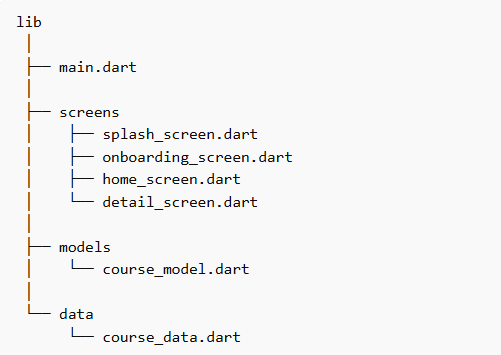
This structure follows clean Flutter architecture.
Expected App Output
When the app runs:
1️⃣ Splash Screen appears
2️⃣ Onboarding tutorial slides show
3️⃣ Course list appears in grid format
4️⃣ Clicking a course opens the detail page
Flow will be as follows:

Additionally, the application must be installed on your physical device during the evaluation.
Instructions to complete your Assignment:
- Work on your selected semester project.
- Work individually on this assignment 02—no group submissions will be accepted.
- Base your work entirely on the project you have already chosen.
- Ensure your submission aligns with the provided guidelines and deadlines on Google Classroom.
Submission instructions:
The assignment should be a Word file containing a screenshot of each screen and a screenshot of the code. A screenshot of the code must be full screen; the code of one page may require multiple screenshots. The assignment file must be submitted as a Word/PDF document on Google Classroom.
Evaluation criteria:
Submission of complete assignment: 05 marks
Viva/Demo: 05 marks
AI-generated/copied assignments will result in 0 marks if been proved during viva.